
Download WhatsApp Desktop – Free, Secure, Cross‑Platform Messaging App
Overview
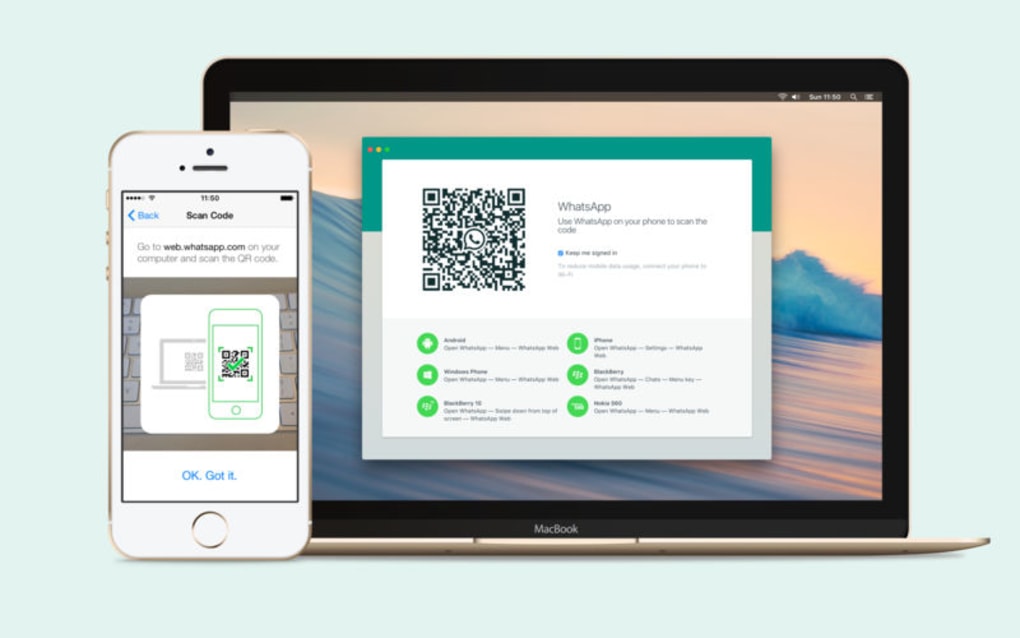
WhatsApp Desktop is the official desktop client for the world‑renowned WhatsApp messenger. Designed to mirror the experience of the mobile app, it lets you view chats, send texts, share photos, documents, and voice notes directly from your computer. The synchronization process is simple: open the desktop client, scan the QR code with your phone’s camera, and the two devices become instantly linked.
This seamless bridge means you no longer need to juggle a phone and keyboard for long typing sessions, making work‑related communication faster and more ergonomic. While the client inherits the robust end‑to‑end encryption of WhatsApp, it also respects the same privacy standards, ensuring that every message remains private whether you type on a laptop or a smartphone. Although video and audio calls are still exclusive to the mobile app, WhatsApp Desktop supports sending recorded video and audio files, as well as all the standard WhatsApp Web functions such as group chats, broadcast lists, and stickers.
The application is completely free, receives regular updates from Meta, and runs on Windows, macOS, and Linux distributions, offering a universal solution for anyone who prefers a desktop workflow without compromising on security or functionality.
Key Features
- Instant QR‑code sync: Pair your phone with the desktop client in seconds using a built‑in QR scanner.
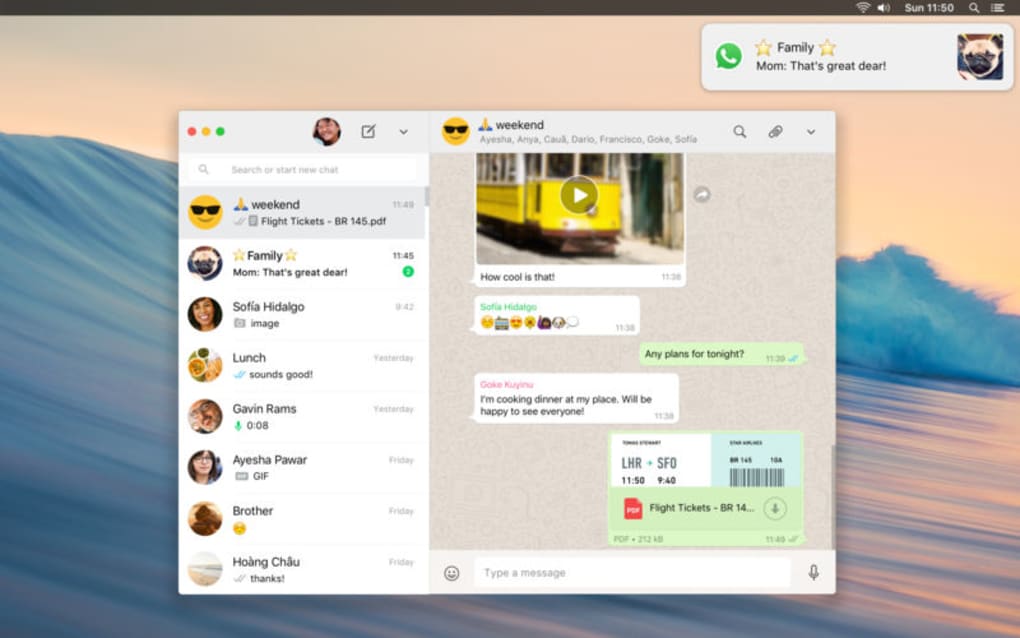
- Full chat history: All text messages, emojis, stickers, and media appear exactly as they do on your phone.
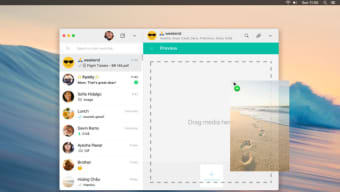
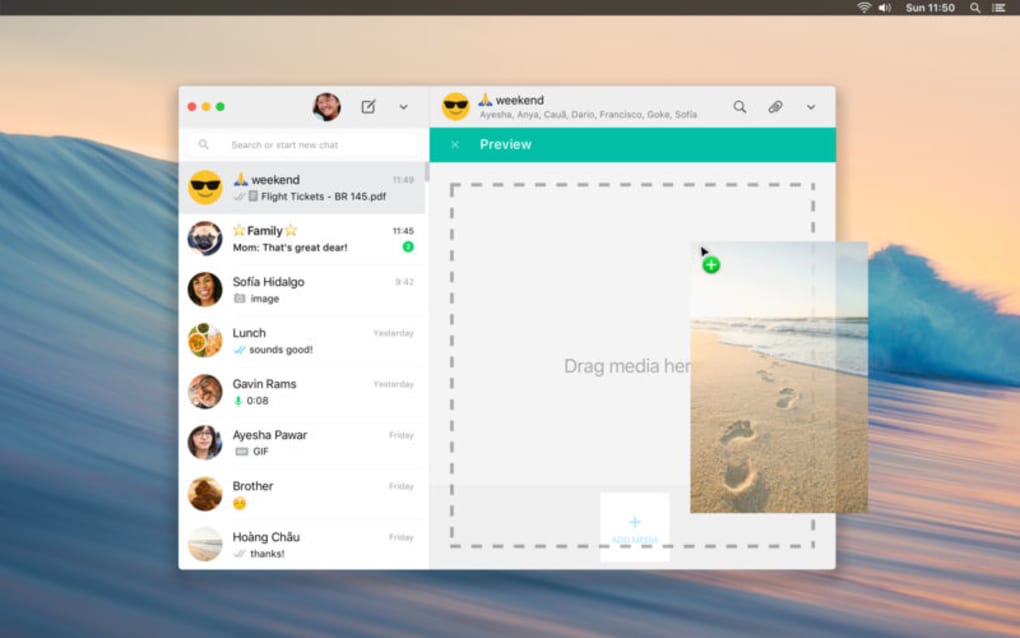
- Drag‑and‑drop file sharing: Send photos, PDFs, spreadsheets, and other documents without leaving your desktop environment.
- Keyboard shortcuts: Navigate conversations, archive chats, and search contacts using customizable shortcuts for faster productivity.
- End‑to‑end encryption: Every message remains encrypted from sender to receiver, preserving privacy across platforms.
- Cross‑platform support: Available for Windows 10/11, macOS 10.13+, and major Linux distributions (Ubuntu, Fedora, etc.).
- Multi‑device readiness: Keep your desktop logged in while the phone stays in the background, provided the phone has an active internet connection.
- Automatic updates: The client checks for the latest security patches and feature releases each time it launches.
- Rich notifications: Desktop alerts mirror mobile push notifications, including message previews and quick reply options.
- Low resource footprint: Optimized for minimal CPU and memory usage, allowing smooth operation on older hardware.
Installation & Usage Guide
Getting WhatsApp Desktop up and running is straightforward, whether you’re on Windows, macOS, or Linux. Follow these step‑by‑step instructions to ensure a hassle‑free experience.
Step 1 – Download the Installer
Visit the official WhatsApp website (https://www.whatsapp.com/download) and select the version that matches your operating system. For Windows, choose the .exe installer; macOS users should download the .dmg file; Linux users can grab the .deb or .rpm package, or use the Snap store.
Step 2 – Run the Installer
After the download completes, double‑click the installer. Windows will prompt you to confirm the installation, macOS will ask you to drag the app into the Applications folder, and Linux will guide you through package installation via your software manager or terminal (e.g., sudo dpkg -i whatsapp-desktop.deb).
Step 3 – Launch the Application
Open WhatsApp Desktop from your Start menu, Launchpad, or application drawer. The first screen you’ll see is a QR‑code placeholder, waiting for your phone to scan.
Step 4 – Pair with Your Phone
On your mobile device, open WhatsApp > Settings > Linked Devices > Link a Device. Point the phone’s camera at the QR code displayed on your computer. Once scanned, the desktop client will automatically sync all your chats, contacts, and groups.
Step 5 – Customize Settings
Access the three‑dot menu in the top‑right corner of the desktop app to adjust notification preferences, set chat background, enable dark mode, and configure keyboard shortcuts. You can also choose to hide “Last Seen” status or disable read receipts for added privacy.
Step 6 – Start Messaging
With the client synced, you can now type messages, attach files via drag‑and‑drop, use emojis and stickers, and search your chat history using the built‑in search bar. Remember that the desktop client remains active only while your phone stays connected to the internet; if the phone loses connectivity, the desktop will show a “Phone not connected” warning.
Compatibility, Pros & Cons
Supported Operating Systems: Windows 10/11, macOS 10.13+ (Catalina and later), Ubuntu 20.04+, Fedora 34+, and other major Linux distributions via Snap or native packages.
Pros
- Free to download and use with no hidden fees.
- Exact replica of mobile chat experience, including end‑to‑end encryption.
- Convenient QR‑code pairing eliminates the need for passwords.
- Low system resource usage, making it ideal for older computers.
- Regular automatic updates keep security patches current.
- Drag‑and‑drop file sharing speeds up workflow for professionals.
- Rich desktop notifications keep you informed without checking your phone.
Cons
- Requires an active phone with internet connectivity; cannot operate completely offline.
- No native video or voice calling support on the desktop client.
- Limited to WhatsApp’s feature set; newer mobile‑only features may lag behind.
- Some users report occasional “Phone not connected” glitches after network changes.
- Linux installation can be slightly more technical for beginners.
Overall Verdict: WhatsApp Desktop provides a reliable, secure, and user‑friendly bridge between mobile messaging and desktop productivity. Its free price tag and cross‑platform availability make it a must‑have for anyone who spends significant time at a computer while staying connected with friends, family, or coworkers.
Frequently Asked Questions
Is WhatsApp Desktop completely free?
Yes, WhatsApp Desktop is free to download and use. There are no subscription fees or hidden charges, and all core messaging features are available at no cost.
Can I use WhatsApp Desktop without my phone?
No. The desktop client works as an extension of the mobile app, so your phone must stay connected to the internet for the desktop to sync and send messages.
Why aren’t video calls available on the desktop version?
Meta has prioritized the mobile experience for real‑time voice and video calls due to bandwidth and hardware considerations. However, you can still send recorded video files through the desktop client.
Is the desktop client as secure as the mobile app?
Absolutely. WhatsApp Desktop inherits the same end‑to‑end encryption as the mobile app, meaning messages are encrypted on your device and decrypted only on the recipient’s device.
How often does WhatsApp Desktop receive updates?
Updates are released regularly, typically every few weeks, to address security patches, bug fixes, and occasional feature enhancements. The client checks for updates each time it launches.
Conclusion & Call to Action
In a world where remote work and digital communication dominate, WhatsApp Desktop offers a seamless, secure, and completely free bridge between your phone and computer. While the absence of native voice and video calls may be a minor drawback for power users, the ability to type long messages, share files instantly, and stay notified without constantly checking your phone makes the desktop client an indispensable productivity tool. If you’re looking to boost your messaging efficiency, reduce phone‑hand fatigue, and keep your conversations synchronized across devices, download WhatsApp Desktop today and experience the convenience of desktop‑first chatting without compromising on privacy or cost.
Click here to download WhatsApp Desktop now and start messaging smarter.







